
Gaming basics
After a game update: a 10-minute checklist before following old guides
Check changed menus, saves, controller behavior and online status without assuming every patch is a major overhaul.
A patch changes more than a date on an article. Here is how to find the right version, read the primary announcement and decide whether an old guide still applies.
GameNova does not represent a continuously monitored live-news feed. We do not invent patch dates or publish third-party rumors as verified facts.
Publisher-controlled destinations for checking official information.
For experience-specific changes, use the experience’s own current description and official creator announcements. For account issues, use Roblox help.
Roblox help →Check the official Minecraft site and match any release details to your edition and platform.
Minecraft website →Look for patch notes or notices published by the respective game creators before trusting a third-party summary.
Fortnite →Free Fire →Record platform, version and the exact step that no longer works.
Check changed menus, saves, controller behavior and online status without assuming every patch is a major overhaul.
Separate frame pacing, connection trouble and controller or display delay using one-variable tests.
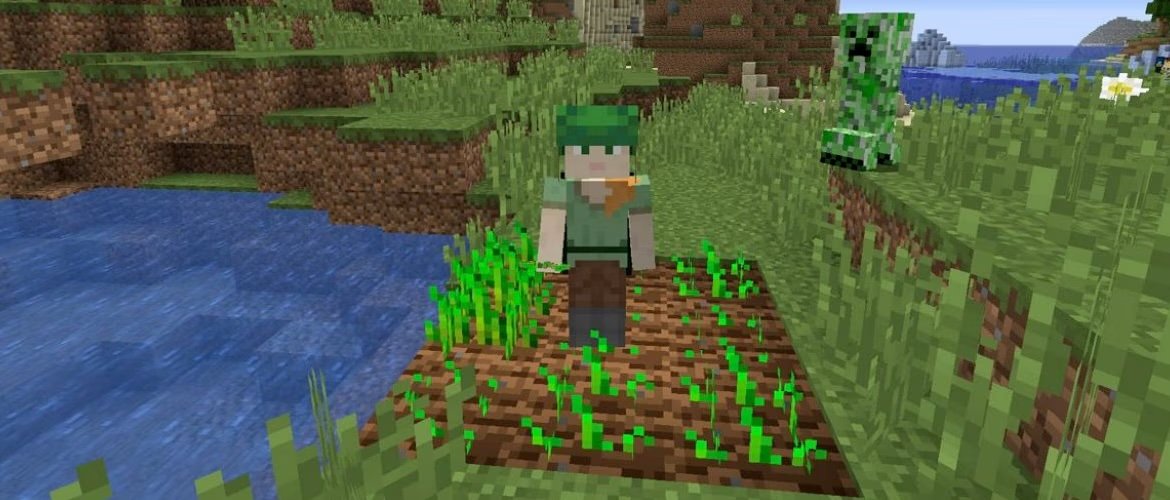
A reproducible seed-checking method that avoids invented coordinates and outdated cross-edition promises.